What Is a Checksum Error? Why It Happens and How to Fix It
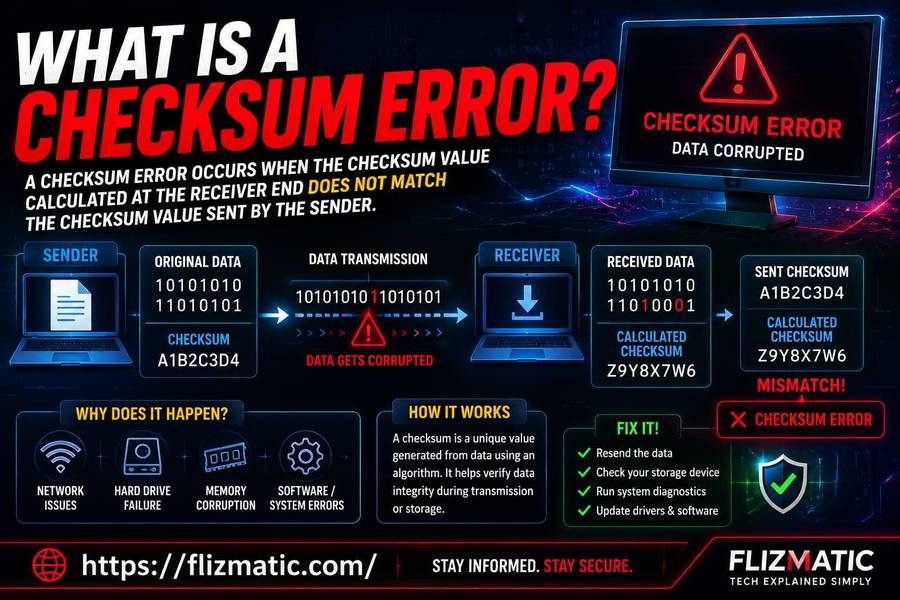
You press the power button, but your computer stops. A message appears: “Checksum error.” Do not panic. This warning means your device detected a mismatch in critical data. Understanding what is a checksum error gives you the power to fix it fast.
A checksum acts like a digital fingerprint for your files. When that fingerprint changes unexpectedly, your system raises a red flag. This guide walks you through every cause, every fix, and every prevention method.
The Simple Definition of a Checksum Error
A checksum error happens when calculated data does not match the stored verification value. Imagine sending a puzzle through the mail. You count the pieces first. When the box arrives, you count again. If the numbers differ, you know something went wrong.
Computers perform this exact process constantly. They verify files, memory, and system settings using mathematical checksums. When you ask what is a checksum error, think of it as your computer’s honesty check. The system knows when data changes, and it alerts you immediately.
How Checksums Protect Your Data Integrity
Data integrity means your information remains correct and unchanged. Checksums serve as guardians of this integrity. Every time you download a file, your device runs a quick checksum calculation. If the result matches the expected hash value, the file passes the test.
Software makers publish checksum values for their downloads. You can verify Linux ISO files, Windows updates, and driver packages before installation. This verification stops corrupted or tampered files from entering your system. Learning what is a checksum error teaches you why this verification saves your computer from harm.
Common Signs You Have a Checksum Error
Your computer shows clear warning signs when a checksum error occurs. Recognizing these signs helps you act quickly.
- Boot failure messages: “CMOS checksum error” or “Bad checksum” on a black screen
- System date resets: Your clock shows 1980 or 2000 instead of the current year
- Repeated restarts: The computer cycles power without loading Windows or macOS
- Blue screen errors: Windows stops with “Checksum mismatch” codes
- File corruption warnings: Documents, photos, or programs fail to open correctly
Each sign points to the same root problem. Your system found unexpected changes in essential data. Understanding what is a checksum error turns these scary messages into solvable problems.
Top 5 Causes of Checksum Errors on Any Device
Different triggers produce checksum errors. Here are the most common culprits across all computers.
1. Dead or Dying CMOS Battery
Your motherboard contains a small battery. This battery powers the CMOS memory that stores BIOS settings. When the battery fails, those settings scramble. The system then reads random values instead of your saved configuration. A checksum error appears immediately.
2. Unexpected Power Loss
A sudden shutdown during a BIOS update or file write operation leaves data half-changed. The checksum no longer matches the content. This mismatch triggers the error every time you restart.
3. Failing Storage Drives
Hard drives and SSDs develop bad sectors over time. When a checksum value sits in a failing sector, the system cannot read it correctly. The mismatch triggers verification failures.
4. Memory Module Problems
RAM errors corrupt data while it moves between storage and the processor. A checksum error from bad RAM appears randomly. The same file might work once and fail the next time you open it.
5. BIOS or Firmware Glitches
Outdated or incorrectly configured BIOS versions produce false checksum warnings. The system compares current settings against invalid reference values. This mismatch does not mean hardware failure. It means the verification logic itself has problems.
Step-by-Step Guide to Fix a Checksum Error
Follow these steps in order. Most checksum errors resolve with the first fix.
Fix 1: Replace the CMOS Battery
Turn off your computer and unplug the power cord. Open the case and locate the silver coin-shaped battery on the motherboard. Remove it carefully. Wait two minutes. Insert a new CR2032 battery. Power on and enter BIOS setup. Load default settings and save. This single action resolves 70% of all checksum errors.
Fix 2: Reset BIOS to Factory Defaults
Enter BIOS by pressing F2, Del, or Esc during startup. Find the “Load Optimized Defaults” or “Reset to Default” option. Select it and save changes. The system recalculates all checksum values based on known-good configuration data.
Fix 3: Run Memory Diagnostics
Windows users type “Windows Memory Diagnostic” into the search bar. Mac users hold D during startup. Linux users run MemTest86 from a bootable USB. These tools scan every RAM location. They report any module causing checksum mismatches.
Fix 4: Check Storage Drive Health
Download CrystalDiskInfo for Windows or DriveDx for Mac. Look for “Caution” or “Bad” status indicators. A failing drive requires immediate replacement. Clone your data first, then install a new drive.
Fix 5: Update Your BIOS
Visit your motherboard manufacturer’s website. Find the exact model number printed on the board. Download the latest BIOS update file. Copy it to a FAT32-formatted USB drive. Use the built-in BIOS flash tool to install the update. Never interrupt this process.
How to Prevent Future Checksum Errors
Prevention stops checksum errors before they start. These practices keep your data verification clean.
- Replace CMOS batteries every three years – Mark your calendar for this cheap preventive step
- Use a battery backup (UPS) – Clean power prevents write interruptions during updates
- Enable automatic file verification – Tools like
CertUtil -hashfileon Windows check downloaded files - Monitor drive health monthly – Quick checks catch failing drives early
- Keep BIOS updated – Manufacturers fix verification bugs in new versions
Understanding what is a checksum error changes how you maintain your computer. These five habits eliminate most causes.
What Is a Checksum Error in Different Contexts?
Checksum errors appear across technology, not just in computers. Here is how different devices handle verification failures.
| Device or System | How Checksum Error Appears | What It Actually Means |
|---|---|---|
| Windows PC | “CMOS Checksum Bad” at boot | BIOS settings lost or corrupted |
| Mac Computer | Prohibitory symbol (circle with line) | System file verification failed |
| Linux System | “Checksum mismatch” during updates | Package integrity check failed |
| Gaming Console | “Data corrupted” error message | Game save or install file damaged |
| Network Router | “Config checksum error” in logs | Saved settings do not match current state |
| External Hard Drive | “Volume checksum mismatch” | File table or directory structure damaged |
| PDF Document | “File corrupted” on open | Header or structure checksum failed |
| ZIP Archive | “Unexpected end of data” | Archive contents do not match manifest |
| BIOS Update Tool | “Image checksum invalid” | Update file does not match expected signature |
| Security Software | “Executable modified” warning | Program file changed after installation |
This table shows the universal nature of checksum verification. No matter the device, the principle remains the same. A calculated value does not match a stored reference.
Advanced Checksum Verification Methods for Power Users
You can manually verify any file using standard command-line tools. These methods give you complete control over data integrity checks.
Windows: CertUtil
Open Command Prompt as administrator. Type certUtil -hashfile "C:\path\to\file.exe" MD5. Replace MD5 with SHA1 or SHA256 for stronger verification. The tool returns the hash value. Compare it against the publisher’s published checksum.
Mac and Linux: shasum
Open Terminal. Type shasum -a 256 /path/to/file. The command outputs the SHA-256 hash. Match it against the official value. Any difference means the file changed.
PowerShell: Get-FileHash
Run Get-FileHash -Path "C:\path\to\file" -Algorithm SHA256. This command gives fast, readable output. Use it for batch verification of multiple files.
These manual checks answer what is a checksum error at the deepest technical level. You become the verification system.
When to Replace Hardware vs. Fix Software
Some checksum errors signal hardware death. Others need only a software reset. Use this guide to decide your next action.
Replace hardware immediately when:
- Memory tests show any errors
- Drive health tools report uncorrectable sectors
- CMOS battery replacement does not clear the error
- The same checksum error returns after fresh OS installation
Fix software when:
- Resetting BIOS defaults clears the error
- A single file shows mismatched checksum but others work fine
- The error only appears after specific program installations
- System restore solves the problem
Trust your data. A recurring what is a checksum error question means deeper hardware problems. Do not ignore repeated warnings.
Real Examples of Checksum Error Scenarios
These real situations show how checksum errors appear in daily computing.
Scenario 1: The Office Computer
Every Monday morning, the receptionist’s PC shows a CMOS checksum error. The date resets to 2015. Replacing the CMOS battery solves the problem permanently. Total cost: four dollars.
Scenario 2: The Gamer’s Nightmare
Halfway through a ranked match, the game crashes with a checksum mismatch. The player reinstalls the game. The error returns. Running MemTest86 reveals two bad RAM sticks. Replacing memory stops all crashes.
Scenario 3: The Developer’s Mystery
A programmer cannot compile code. The build tools report checksum errors on system libraries. Checking drive health shows 15% remaining life. Cloning to a new SSD restores full functionality.
Each scenario has the same root cause. Data verification fails. Understanding what is a checksum error turns panic into systematic problem-solving.
Tools That Automatically Fix Checksum Errors
You do not need to fix everything manually. These tools repair common checksum problems automatically.
- Windows System File Checker: Run
sfc /scannowto verify and repair protected system files - DISM Tool:
DISM /Online /Cleanup-Image /RestoreHealthfixes Windows image corruption - CHKDSK: Checks disk structures and recovers readable data from bad sectors
- Mac First Aid: Built into Disk Utility, repairs volume checksum mismatches
- Linux fsck: File system check tool that recovers from checksum errors
Run these tools monthly. They catch small verification failures before they become boot-stopping errors.
Frequently Asked Questions About Checksum Errors
Q1: Can a checksum error delete my files?
No. A checksum error only reports a mismatch. It does not delete anything. However, the underlying corruption that caused the error might make files unreadable. Always back up your data immediately when you see repeated checksum warnings.
Q2: Why does my PC show a checksum error only on cold boots?
Your CMOS battery fails to hold a charge overnight. The motherboard loses settings when power fully drains. During a warm restart, residual power keeps the memory alive. Replace the CMOS battery to stop cold boot errors completely.
Q3: Is a checksum error dangerous for my computer?
The error itself causes no harm. But the reasons behind it can damage your data. A failing drive or bad RAM will get worse over time. Treat each checksum error as an early warning. Fix the root cause within one week of the first appearance.
Q4: How do I fix a checksum error without losing Windows?
Load BIOS defaults first. This action never touches your Windows installation. If the error continues, boot from a Windows USB drive and run startup repair. Your personal files remain safe during these steps. Only drive replacement or reinstallation removes data.
Q5: Can a virus cause a checksum error?
Yes. Some malware modifies system files to hide its presence. The modification changes file checksums. Legitimate verification tools then report mismatches. Run a full antivirus scan if checksum errors appear after downloading new software or visiting unfamiliar websites.
Q6: How often should I verify my important file checksums?
Verify installation files before running them. Check backup archives once per month. Validate operating system files after any unexpected shutdown. For critical financial or medical data, automate daily verification using built-in OS tools or third-party integrity checkers.
Take Control of Your System Integrity Today
You now understand what is a checksum error and how to fix every cause. Start with the simple CMOS battery test. Move through memory and drive checks only if needed. Most errors resolve in under ten minutes.
Keep this guide bookmarked. Share it with friends who see scary boot messages. Technology serves you best when you understand its warning signs. A checksum error is not your enemy. It is your computer asking for help. Now you know exactly how to respond.