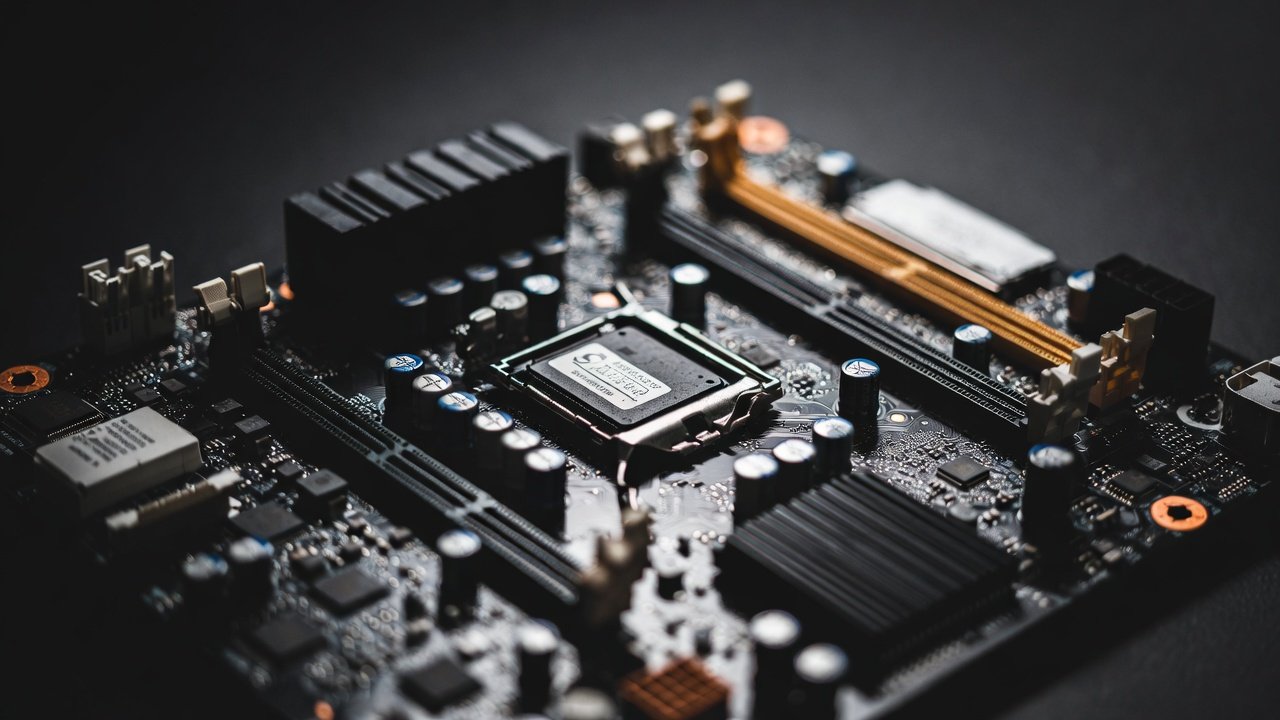
Motherboard
Introduction
Have you ever needed to know exactly what motherboard is sitting inside your computer? Maybe you want to upgrade your RAM, install a new graphics card, or sell your old PC. Knowing the exact model is the first step. It might sound technical, but finding this information is much easier than you think. You do not need to be a computer expert or open your computer case right away.
In fact, you can often find the details in just a few seconds using tools already built into Windows. Many people in the USA search for “how to check motherboard model” when they run into driver issues or plan an upgrade. I have helped dozens of friends with their computer builds, and the first thing we always do is identify their hardware. This guide will walk you through every possible method. We will use simple commands, free tools, and even look at the physical board itself. By the end, you will know your motherboard model and feel more confident about your computer’s capabilities. Let’s get started on this simple journey inside your PC.
Why You Need to Know Your Motherboard Model
Before we dive into the how-to, let’s talk about the “why.” Knowing your motherboard model is like knowing the foundation of your house. It determines what you can and cannot do with your computer. For example, if you want to play the latest video games, you might need a new graphics card. But is your motherboard compatible? The model number tells you the type of slot you have, like PCIe 3.0 or 4.0.
Similarly, when your computer feels slow, adding more memory (RAM) is a great fix. However, you cannot just buy any stick of RAM. Your motherboard supports a specific type, like DDR4 or the newer DDR5. It also has a maximum amount of memory it can handle. If you do not check the model first, you might buy the wrong parts and waste money. I once bought a high-end processor, only to realize my older motherboard didn’t support it. Learning how to check motherboard model saved me from making that expensive mistake again. It also helps when you need to download the correct audio or network drivers from the manufacturer’s website.
Method 1: Using the Windows Command Prompt (The Fastest Way)
This is my go-to method because it is fast, free, and does not require installing any extra software. The Command Prompt might look a little scary if you have never used it, but I promise it is very simple. You just type one command, and the computer does the rest. It is a perfect example of how to check motherboard model without any fuss.
First, click on the Start menu or press the Windows key on your keyboard. Type “Command Prompt” or just “cmd” into the search bar. You will see an app appear. Right-click on it and select “Run as administrator.” This gives us permission to see the system details. A black box with white text will pop up. Now, carefully type the following command and press Enter on your keyboard:
wmic baseboard get product, Manufacturer, version, serialnumber
After a second, the screen will show you the information. You will see your manufacturer (like Dell, ASUS, or MSI) and the product name (which is your motherboard model). The serial number might show up, or it might just be blank, and that is totally fine. Write down the model number exactly as it appears. This method works on Windows 10, Windows 11, and even older versions. It pulls the data directly from the system firmware, so it is very accurate.
Method 2: Getting Details with Windows System Information
If you prefer a graphical interface over typing commands, Windows has another built-in tool just for you. It is called System Information. This tool gives you a complete overview of your entire computer, not just the motherboard. It feels a bit more familiar because it looks like a standard settings window. For many USA users, this is the most comfortable way to find what they need.
To open it, press the Windows Key + R at the same time. This opens a little “Run” box. In that box, type msinfo32 and click “OK.” A new window will open called “System Information.” It might take a few seconds to load all the details. Once it loads, look at the “System Summary” which is selected by default.
On the right-hand side, scroll down until you see “System Manufacturer” and “System Model.” The manufacturer is the brand, and the model is the specific name of your motherboard. For example, it might say “System Manufacturer: ASUS” and “System Model: PRIME B660-PLUS D4.” This is exactly the information you are looking for. This tool is excellent because it also lists the BIOS version and other system specs, which are helpful for advanced troubleshooting. It is a safe and reliable way to get a snapshot of your PC’s health and identity.
Method 3: Using the DirectX Diagnostic Tool (DxDiag)
Gamers in the USA are often very familiar with the DirectX Diagnostic Tool, commonly called DxDiag. It is designed to help with graphics and sound issues in games, but it also conveniently displays your system information. It is another built-in tool that requires no downloads, making it a fantastic option when you need to know how to check motherboard model quickly.
To launch DxDiag, press the Windows Key + R again to open the Run dialog box. Type dxdiag into the box and hit Enter. You might see a prompt asking if you want to check if your drivers are digitally signed. You can just click “Yes” or “No” – it doesn’t matter for finding your motherboard. The tool will take a moment to load.
Once it opens, you will be on the “System” tab. Look at the “System Information” section at the top. You will see “System Manufacturer” and “System Model.” Just like in the System Information tool, this tells you exactly what motherboard you have. While DxDiag is primarily for graphics and sound, it pulls the base system data correctly. It is a handy trick to remember, especially if you are already troubleshooting a game and need to know your specs.
Method 4: Checking the Motherboard Physically
Sometimes, software methods fail. Maybe the computer won’t boot, or the system information is missing. In that case, you have to go old school. Physically looking at the motherboard is the most direct way to check the model. It sounds intimidating, but with a few precautions, it is perfectly safe. I remember having to do this for an old office computer we were trying to upgrade. The software just showed “Unknown,” so we had to look inside.
First, turn off your computer completely and unplug the power cord from the back. It is very important to disconnect the power for safety. Then, open the computer case. This usually involves removing a couple of screws on the back panel. Once the side is off, look at the main large circuit board. The model name is usually printed directly on the board itself.
Where do you look? Check between the expansion slots (where you plug in the graphics card). Also, look near the CPU socket in the middle of the board, or around the RAM slots. The text is often in a bright color like white or blue. It will say something like “GIGABYTE Z490 AORUS MASTER.” You might need a flashlight to see it clearly. Grab your phone and take a picture so you have the exact spelling. This method is foolproof because you are looking at the actual hardware.
Method 5: Free Third-Party Software Tools
If you want more details than just the manufacturer and model, third-party software is the way to go. These free tools are very popular in the USA tech community. They give you a complete report on your system, including temperatures, voltages, and fan speeds. They are safe to download from official sites and are extremely user-friendly.
One of the best and most trusted tools is CPU-Z. It is a small program that you can download and run without installing (a portable version). When you open CPU-Z, it immediately scans your hardware. The first tab, simply called “CPU,” shows your processor details. But the tab you want is the “Mainboard” tab. Here, you will find the manufacturer, model, and even the chipset and BIOS version. It is incredibly detailed and accurate.
Another great tool is Speccy. It has a cleaner, more modern look and gives you a summary on one screen. Both of these tools are lightweight and do not run in the background or slow down your computer. If you are someone who likes to keep an eye on their system, having one of these installed is a great idea. They take the guesswork out of how to check motherboard model and provide a treasure trove of other useful data.
Method 6: Checking the BIOS or UEFI Firmware
The BIOS (Basic Input/Output System) or its modern version, UEFI, is the low-level software that starts your computer. It holds all the essential information about your hardware. Checking here is a guaranteed way to find your motherboard model because it is where the computer stores that information. It is also helpful if Windows is not loading properly.
To enter the BIOS, you need to press a specific key right when the computer starts, during the boot-up process. This key is often Delete, F2, or F10. It usually flashes briefly on the screen, saying “Press F2 to enter Setup.” When you see the manufacturer’s logo, start tapping that key. Once you are inside, the interface looks different on every computer. Some have a fancy graphical interface you can use with a mouse, while older ones are text-only and use the keyboard.
Look for a tab or section labeled “System Information,” “Main,” or “System Summary.” You will usually find the motherboard name, often called the “Product Name,” right at the top. It is listed alongside the processor and memory amount. This is a very reliable method. It shows you exactly what the computer thinks it has, which is the truth. Navigating the BIOS might feel a bit strange at first, but you cannot break anything just by looking.
Method 7: Using PowerShell (For Advanced Users)
PowerShell is like a more powerful version of the Command Prompt. It is a task automation tool that is built into Windows. If you are comfortable with technology, this is another fast and effective way to get your motherboard details. It uses a slightly different command, but the result is just as clear.
To start, right-click on the Start button or press Windows Key + X. From the menu that pops up, select “Windows PowerShell (Admin)” or “Terminal (Admin).” This opens a blue window where you can type commands. Do not let the word “Admin” scare you; it just lets the command run properly.
Once the window is open, type the following command and press Enter:
Get-WmiObject -Class Win32_BaseBoard | Format-Table Manufacturer, Product, SerialNumber -AutoSize
After you press Enter, the system will display a neat table showing your manufacturer, the product (model) name, and the serial number. It looks very clean and professional. PowerShell is a fantastic tool that many IT professionals use daily. Learning this simple command is a great way to feel like a power user. It is a very direct and scriptable way to learn how to check motherboard model on any modern Windows machine.
Complete Detailing Table of Methods
To make your life even easier, I have put together a simple table. This table compares all the methods we discussed. It helps you pick the best option for your situation. Whether you want something fast, detailed, or don’t mind opening your computer case, this guide has you covered.
| Method | Tools Needed | Difficulty Level | Key Information Provided |
|---|---|---|---|
| Command Prompt | Built-in Windows | Very Easy | Manufacturer, Model, Serial Number |
| System Information | Built-in Windows | Very Easy | Manufacturer, Model, BIOS Version |
| DxDiag Tool | Built-in Windows | Very Easy | Manufacturer, Model, System Memory |
| Physical Inspection | Flashlight, Screwdriver | Medium | Exact Model Number (printed on board) |
| CPU-Z / Speccy | Free Download | Easy | Manufacturer, Model, Chipset, BIOS, Voltages |
| BIOS/UEFI | Built-in to PC | Medium | Product Name, Serial Number, BIOS Settings |
| PowerShell | Built-in Windows | Easy | Manufacturer, Model, Serial Number |
As you can see, there is a method for everyone. If you are in a hurry, the Command Prompt is your best friend. If you want to learn more about your computer’s health, try CPU-Z. And if you cannot turn the computer on, physical inspection is the only way. Keep this table bookmarked for future reference.
What to Do After You Find Your Motherboard Model
Congratulations! You now know exactly what motherboard you have. But this information is just the starting point. The real value comes from what you do with it. Now that you know the model, you can finally plan that upgrade you have been thinking about. The first thing I always do is visit the manufacturer’s official website.
Go to the support or downloads section of the site. Type in your exact motherboard model. Here, you will find a list of all available drivers. It is a good idea to check if there is a newer BIOS update available. BIOS updates can improve stability and compatibility with new hardware. You can also download the official manual. The manual is a goldmine of information. It shows you the exact layout of the board, which RAM slots to use first, and what each connector does.
Knowing your model also helps you sell your computer if you ever decide to. Buyers always want to know what is inside. It adds value and trust to your listing. You can also join online forums for your specific motherboard brand. If you run into problems later, you can ask for help from other users who have the same setup. Knowing how to check motherboard model opens the door to a much deeper understanding of your personal computer.
Common Mistakes to Avoid When Identifying Your Motherboard
In my years of working with computers, I have seen people make a few common mistakes. Avoiding these will save you time and frustration. The most common mistake is relying solely on the sticker on the computer case. Many pre-built computers, like those from Dell or HP, have fancy cases. The sticker might say “Gaming Series” or “Business Pro,” but that is not the motherboard model. That is just a marketing name. You need to use the software methods above to find the true model of the board inside.
Another mistake is confusing the chipset with the model. For example, you might see “Intel Z790” and think that is your motherboard. But Z790 is just the chipset. Many different motherboards use the Z790 chipset, made by different companies like ASRock, Gigabyte, and MSI. You need the full name, like “MSI MPG Z790 CARBON WIFI.” The chipset is part of the model, but it is not the whole story.
Finally, do not misread the model number. One wrong letter or number can lead you to the wrong drivers. For example, “B660-A” is different from “B660-Plus.” Always write it down exactly as it appears, paying attention to dashes, spaces, and capital letters. Taking a picture with your phone during physical inspection is a great way to ensure you get it right.
Conclusion
Knowing how to check motherboard model is a fundamental skill for anyone who uses a computer. It puts you in control. You are no longer guessing about what is inside your machine. You have the power to make informed decisions about upgrades, repairs, and troubleshooting. As we have seen, Windows provides multiple easy ways to find this information, often in less than a minute. Whether you choose the speedy Command Prompt or the detailed System Information tool, the answer is just a few clicks away.
I encourage you to try one of these methods right now. Pick the one that sounds easiest to you. Maybe you will feel like a tech wizard using PowerShell, or perhaps you are curious to peek inside your case. Either way, go find that model number. Write it down and keep it somewhere safe. The next time you need to upgrade your graphics card or download a driver, you will have the exact information you need. Your computer is a powerful machine, and now you know exactly what makes it tick.
Frequently Asked Questions (FAQs)
1. Is it safe to open my computer case to look at the motherboard?
Yes, it is completely safe as long as you take the right precautions. The most important step is to turn off your computer and unplug the power cable from the back. After that, press the power button once to discharge any leftover electricity in the system. Then, you can open the case. Avoid touching any of the metal circuits directly, and work on a hard, non-carpeted surface to avoid static shock.
2. Why do the Command Prompt and System Information show different names?
They usually show the same information, but sometimes System Information might show the system’s brand name (like “HP Pavilion”) instead of the actual motherboard model. This is common in pre-built computers. The Command Prompt command (wmic baseboard get product) is usually more reliable because it specifically asks for the motherboard’s product name, not the computer’s marketing name.
3. Can I check my motherboard model without turning on my computer?
Yes, you can. If your computer does not turn on, physical inspection is your only option. You will need to open the case and look for the model number printed directly on the motherboard’s circuit board. It is usually located near the RAM slots, the CPU socket, or between the PCIe slots. A flashlight and a magnifying glass can be very helpful for this.
4. Does the motherboard model affect computer speed?
It can, but indirectly. The motherboard itself doesn’t have a “speed,” but it determines which components you can use. A newer motherboard with a fast chipset allows you to install a faster processor, more advanced RAM, and speedy NVMe SSDs. These components directly affect your computer’s speed. Your motherboard is the foundation that allows these parts to work together.
5. What is the difference between the manufacturer and the model?
The manufacturer is the company that made the motherboard, like ASUS, MSI, Gigabyte, or ASRock. The model is the specific product name, like “ROG STRIX B550-F GAMING.” Think of it like a car: the manufacturer is Ford, and the model is Mustang. You need both to identify the exact specifications and compatible parts.
6. Do I need to update my BIOS after finding my motherboard model?
Not always. A common saying in the tech world is, “If it isn’t broken, don’t fix it.” You only really need to update your BIOS if you are having stability issues, or if you plan to install a newer CPU that requires a newer BIOS version to work. If your computer is running fine, a BIOS update is optional. However, checking the manufacturer’s website for updates is always a good practice.
About the Author